

- Want to monitor context window usage as you work
- Need to track session costs
- Work across multiple sessions and need to distinguish them
- Want git branch and status always visible
esc to interrupt, the ? for shortcuts fallback, and the hold space to speak voice dictation hint. To add clickable link badges to the footer when an ID appears in the conversation, without writing a script, configure footerLinksRegexes instead.
Here’s an example of a multi-line status line that displays git info on the first line and a color-coded context bar on the second.
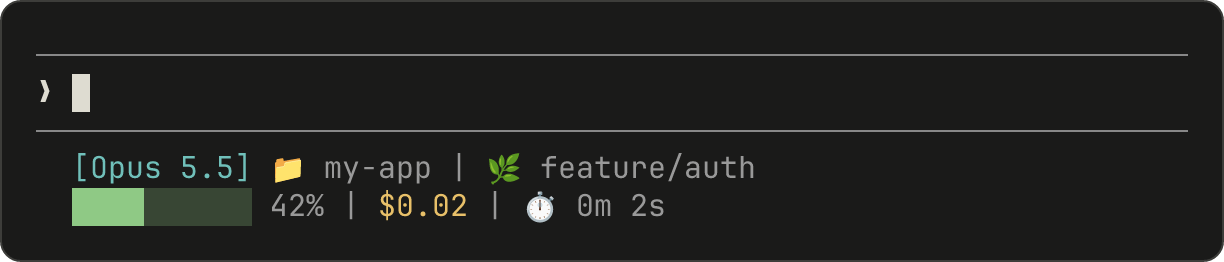
Set up a status line
Use the/statusline command to have Claude Code generate a script for you, or manually create a script and add it to your settings.
Use the /statusline command
The/statusline command accepts natural language instructions describing what you want displayed. Claude Code generates a script file in ~/.claude/ and updates your settings automatically:
Manually configure a status line
Add astatusLine field to your user settings (~/.claude/settings.json, where ~ is your home directory) or project settings. Set type to "command" and point command to a script path or an inline shell command. For a full walkthrough of creating a script, see Build a status line step by step.
command field runs in a shell, so you can also use inline commands instead of a script file. This example uses jq to parse the JSON input and display the model name and context percentage:
padding field adds extra horizontal spacing (in characters) to the status line content. Defaults to 0. This padding is in addition to the interface’s built-in spacing, so it controls relative indentation rather than absolute distance from the terminal edge.
The optional refreshInterval field re-runs your command every N seconds in addition to the event-driven updates. The minimum is 1. Set this when your status line shows time-based data such as a clock, or when background subagents change git state while the main session is idle. Leave it unset to run only on events.
The optional hideVimModeIndicator field suppresses the built-in -- INSERT -- text below the prompt. Set this to true when your script renders vim.mode itself, so the mode is not shown twice.
Disable the status line
Run/statusline and ask it to remove or clear your status line (for example, /statusline delete, /statusline clear, /statusline remove it). You can also manually delete the statusLine field from your settings.json.
Build a status line step by step
This walkthrough shows what/statusline sets up for you by manually creating a status line that displays the current model, working directory, and context window usage percentage.
Running
/statusline with a description of what you want configures all of this for you automatically.
1
Create a script that reads JSON and prints output
Claude Code sends JSON data to your script via stdin. This script uses
jq, a command-line JSON parser you may need to install, to extract the model name, directory, and context percentage, then prints a formatted line.Save this to ~/.claude/statusline.sh (where ~ is your home directory, such as /Users/username on macOS or /home/username on Linux):2
Make it executable
Mark the script as executable so your shell can run it:
3
Add to settings
Tell Claude Code to run your script as the status line. Add this configuration to Your status line appears at the bottom of the interface. Claude Code reloads settings automatically and runs your script as soon as you save the file.
~/.claude/settings.json, which sets type to "command" (meaning “run this shell command”) and points command to your script:How status lines work
Claude Code runs your script with JSON session data on stdin and displays whatever the script prints to stdout.The status line runs locally and does not consume API tokens. It temporarily hides during certain UI interactions, including the help menu and permission prompts.
When the status line updates
Your script runs once when a session starts, including when you resume one. After that, it runs again when:- A new assistant message arrives
/compactfinishes- The permission mode changes
- Vim mode toggles
- You change the
commandin yourstatusLinesettings - A
refreshIntervaltimer elapses, if you set one - A rate-limit window in the data your script last received reaches its
resets_attime - A warm prompt cache in the data your script last received reaches its
expires_attime
command itself skips the debounce: Claude Code runs the new command right away. If a new update triggers while your script is still running, Claude Code cancels the in-flight script. If you edit your script, the changes appear the next time an update trigger re-runs it.
The event-driven triggers can go quiet when the main session is idle, for example while a coordinator waits on background subagents. To keep time-based or externally-sourced segments current during idle periods, set refreshInterval to also re-run the command on a fixed timer.
What your script can output
Your script can print more than a single line of plain text:- Multiple lines: each
echoorprintstatement displays as a separate row. See the multi-line example. - Colors: use ANSI escape codes like
\033[32mfor green (terminal must support them). See the git status example. - Links: use OSC 8 escape sequences to make text clickable (Cmd+click on macOS, Ctrl+click on Windows/Linux). Requires a terminal that supports hyperlinks like iTerm2, Kitty, or WezTerm. See the clickable links example.
Size output to the terminal
Claude Code captures your script’s output instead of connecting it directly to the terminal, sotput cols and language-level width detection cannot read the terminal size from inside the script. Read the COLUMNS and LINES environment variables instead. Claude Code sets these to the current terminal dimensions before running your script.
Available data
Claude Code sends the following JSON fields to your script via stdin:Full JSON schema
Full JSON schema
Your status line command receives this JSON structure via stdin:Fields that may be absent (not present in JSON):
session_name: appears when a custom name has been set with--nameor/rename, or once an AI-generated session title exists. The default display name, such asmy-app-3f, doesn’t populate itprompt_id: appears only after the first user inputworkspace.git_worktree: appears only when the current directory is inside a linked git worktreeworkspace.repo: appears only inside a git repository with anoriginremote configuredeffort: appears only when the current model supports the reasoning effort parametervim: appears only when vim mode is enabledagent: appears only when running with the--agentflag or agent settings configuredpr: appears only while an open PR or GitLab merge request is found for the current branch, and is removed once it merges or closes.pr.review_stateandpr.kindmay be independently absentworktree: appears only while the session is in a worktree session. When present,branchandoriginal_branchmay also be absent for hook-based worktreesrate_limits: appears only for claude.ai Pro and Max subscribers, or behind a Claude apps gateway that sets a spend limit for you, and only after the first API response in the session. Each window (five_hour,seven_day,spend_limit) may be independently absent, and Claude Code drops a window once itsresets_attime passes. Usejq -r '.rate_limits.five_hour.used_percentage // empty'to handle absence gracefully.prompt_cache: appears after the main conversation’s first API response. See prompt cache fields
null:context_window.current_usage:nullbefore the first API call in a session, and again after/compactuntil the next API call repopulates itcontext_window.used_percentage,context_window.remaining_percentage: may benullearly in the session
Context window fields
Thecontext_window object describes the live context window from the most recent API response.
- Combined totals (
total_input_tokens,total_output_tokens): tokens currently in the context window.total_input_tokensis the sum ofinput_tokens,cache_creation_input_tokens, andcache_read_input_tokens;total_output_tokensis the output tokens from the most recent response. Both are0before the first API response. - Per-component usage (
current_usage): the same token counts broken out by category. Use this when you need cache hits separate from fresh input.
current_usage object contains:
input_tokens: input tokens in current contextoutput_tokens: output tokens generatedcache_creation_input_tokens: tokens written to cachecache_read_input_tokens: tokens read from cache
used_percentage field is calculated from input tokens only: input_tokens + cache_creation_input_tokens + cache_read_input_tokens. It does not include output_tokens.
If you calculate context percentage manually from current_usage, use the same input-only formula to match used_percentage.
The current_usage object is null before the first API call in a session, and again immediately after /compact until the next API call repopulates it.
Spend limit fields
Behind a Claude apps gateway with spend limits, therate_limits.spend_limit object describes the spend limit that applies to you. It appears after the session’s first API response and requires Claude Code v2.1.251 or later. Your script receives its fields on separate schedules:
used_percentageandresets_at: come with every response, so they are present wheneverspend_limitis.used_percentageruns from 0 to 100, or above 100 once you exceed the limit, andresets_atis the Unix epoch seconds when the limit’s period resets.used_usd,limit_usd, andperiod: your estimated spend so far and your limit in US dollars, and the period the limit covers, one ofdaily,weekly, ormonthly. The gateway computesused_usdfrom token counts, so it’s an estimate and not a billed amount. Claude Code reads them from the gateway in a separate request, about every five minutes while you send requests. The dollar amounts can be about five minutes older thanused_percentage, so the two may briefly disagree. Requires v2.1.284 or later on both Claude Code and the gateway.
used_usd, limit_usd, and period as optional even when spend_limit is present. Your script receives the percentage before them, and they stay absent if you set CLAUDE_CODE_DISABLE_NONESSENTIAL_TRAFFIC, which turns that request off. Read each with a fallback in your script, such as jq -r '.rate_limits.spend_limit.used_usd // empty'.
Prompt cache fields
Theprompt_cache object summarizes how the session’s main conversation is using the prompt cache. Claude Code computes it from the cache token counts in the API’s responses, so it works on every provider.
The object appears after the main conversation’s first API response. Claude Code doesn’t count subagent requests in these statistics. Requires Claude Code v2.1.251 or later.
The table lists each field with its meaning. Timestamps are Unix epoch seconds, the same unit as rate_limits.*.resets_at. A short status line usually shows one or two of these; warm and hit_ratio summarize the cache state most directly.
Claude Code shows the same statistics in the terminal, on the
/usage command’s Prompt cache (main) line.
Last miss cause
Thelast_miss_cause object reports what Claude Code identified as the likely cause of the most recent miss. Its causes array holds one or more cause names, such as tools_changed, system_prompt_changed, ttl_expired_5m, or likely_server_side. The object is null until the session’s first miss, and again whenever Claude Code couldn’t identify a cause for the most recent miss. Requires Claude Code v2.1.260 or later.
Two causes add counts to the object:
tools_addedandtools_removed: withtools_changed, how many tools were added to or removed from the requestsystem_char_delta: withsystem_prompt_changed, the change in the system prompt’s length, in characters
Examples
These examples show common status line patterns. To use any example:- Save the script to a file like
~/.claude/statusline.sh(or.py/.js) - Make it executable:
chmod +x ~/.claude/statusline.sh - Add the path to your settings
jq to parse JSON. Python and Node.js have built-in JSON parsing.
Context window usage
Display the current model and context window usage with a visual progress bar. Each script reads JSON from stdin, extracts theused_percentage field, and builds a 10-character bar where filled blocks (▓) represent usage:

Git status with colors
Show git branch with color-coded indicators for staged and modified files. This script uses ANSI escape codes for terminal colors:\033[32m is green, \033[33m is yellow, and \033[0m resets to default.

Cost and duration tracking
Track your session’s API costs and elapsed time. Thecost.total_cost_usd field accumulates the estimated cost of all API calls in the current session. The cost.total_duration_ms field measures the total time the session has been running, while cost.total_api_duration_ms tracks only the time spent waiting for API responses.
Each script formats cost as currency and converts milliseconds to minutes and seconds:

Display multiple lines
Your script can output multiple lines to create a richer display.print or echo statement creates a separate row:
Clickable links
This example creates a clickable link to your GitHub repository. Hold Cmd (macOS) or Ctrl (Windows/Linux) and click to open the link in your browser.
printf '%b' which interprets backslash escapes more reliably than echo -e across different shells:
Rate limit usage
Display claude.ai subscription rate limit usage, or your spend against a Claude apps gateway spend limit, in the status line. For subscribers, therate_limits object contains a rolling five_hour window and a weekly seven_day window. Each window provides used_percentage, from 0 to 100, and resets_at, the Unix epoch seconds when the window resets. Behind a gateway, read the spend_limit object, described under spend limit fields.
The rate_limits object is only present for claude.ai Pro and Max subscribers, or behind a Claude apps gateway with spend limits, and only after the first API response. Each script handles the absent fields gracefully, and behind a gateway prints spend: $314.12 / $500, or spend: 63% while the dollar fields are absent:
Cache expensive operations
Your status line script runs frequently during active sessions. Commands likegit status or git diff can be slow, especially in large repositories. This example caches git information to a temp file and only refreshes it every 5 seconds.
The cache filename needs to be stable across status line invocations within a session, but unique across sessions so concurrent sessions in different repositories don’t read each other’s cached git state. Process-based identifiers like $$, os.getpid(), or process.pid change on every invocation and defeat the cache. Use the session_id from the JSON input instead: it’s stable for the lifetime of a session and unique per session.
Each script checks if the cache file is missing or older than 5 seconds before running git commands:
Windows configuration
On Windows, Claude Code runs status line commands through Git Bash when Git Bash is installed, or through PowerShell when Git Bash is absent. Git Bash treats unquoted backslashes as escape characters, so a Windows-style path such asC:\Users\username\script.mjs reaches the script runner with its separators removed and the command fails without a visible error. Write file paths in the command string with forward slashes, as shown in the examples below. The ~ shorthand also works and expands to your Windows home directory.
To run a PowerShell script as your status line, invoke it via powershell. This works whether Claude Code routes the command through Git Bash or PowerShell:
Subagent status lines
ThesubagentStatusLine setting renders a custom row body for each subagent shown in the agent panel below the prompt. Use it to replace the default name · description · token count row with your own formatting.
columns field with the usable row width, and a tasks array with one entry per row, described in Task fields.
Write one JSON line to stdout per row you want to override, in the form {"id": "<task id>", "content": "<row body>"}. The content string is rendered as-is, including ANSI colors and OSC 8 hyperlinks. Omit a task’s id to keep the default rendering for that row; emit an empty content string to hide it.
The same trust, disableAllHooks, and allowManagedHooksOnly gates that apply to statusLine apply here. Plugins can ship a default subagentStatusLine in their settings.json, but unlike hooks, plugin values don’t run under allowManagedHooksOnly even when the plugin is force-enabled in managed settings enabledPlugins.
Task fields
Each entry in thetasks array describes one subagent row with the fields below. Fields marked optional are omitted when they have no value, so guard for their absence in your script.
Tips
- Test with mock input:
echo '{"model":{"display_name":"Opus"},"workspace":{"current_dir":"/home/user/project"},"context_window":{"used_percentage":25},"session_id":"test-session-abc"}' | ./statusline.sh - Keep output short: the status bar has limited width, so long output may get truncated or wrap awkwardly
- Cache slow operations: your script runs frequently during active sessions, so commands like
git statuscan cause lag. See the caching example for how to handle this.
Troubleshooting
If the status line is blank, start with Status line not appearing. A folder you haven’t trusted and a script that fails also leave it blank, as Workspace trust required and Script errors or hangs describe.Status line not appearing
If you configured a status line and nothing shows at the bottom of the interface, work through these checks:- Verify your script is executable:
chmod +x ~/.claude/statusline.sh - Check that your script outputs to stdout, not stderr
- Run your script manually to verify it produces output
- On Windows with Git Bash installed, backslashes in the
commandpath are likely being consumed as escape characters before the script runs. Use forward slashes in the path. See Windows configuration. - If
disableAllHooksistrueoutside managed settings after settings precedence applies, Claude Code runs only astatusLinefrom managed settings, and with no managedstatusLinethe status line is disabled. Remove the setting, or set it tofalsein the file that sets it, to re-enable. SeedisableAllHooks. - If your organization sets
allowManagedHooksOnlyin managed settings, your custom status line disappears without warning: you can only get a status line from astatusLinevalue in those managed settings. See what runs underallowManagedHooksOnlyfor the full behavior, and ask your administrator whether this setting applies to you. - Run
claude --debugto log your script’s stderr on every status line invocation, and its exit code on the first invocation in a session - Ask Claude to read your settings file and execute the
statusLinecommand directly to surface errors
Status line shows -- or empty values
Fields may be null before the first API response completes, so handle null values in your script with fallbacks such as // 0 in jq. Restart Claude Code if values remain empty after multiple messages.
Context percentage shows unexpected values
The status line reports the counts from the last API response, while/context adds an estimate for messages added since that response, so /context can read higher until the next response. Use used_percentage for the simplest accurate context state. For the formula behind used_percentage, see Context window fields.
OSC 8 links not clickable
Whether a link is clickable depends on your terminal, on whether Claude Code detects hyperlink support in it, on whether SSH or tmux strips the escape sequence, and on how your script prints it:- Verify your terminal supports OSC 8 hyperlinks (iTerm2, Kitty, WezTerm)
- Terminal.app does not support clickable links
-
If link text appears but isn’t clickable, Claude Code may not have detected hyperlink support in your terminal. Set the
FORCE_HYPERLINKenvironment variable to override detection before launching Claude Code:In PowerShell, set the variable in the current session first: - SSH and tmux sessions may strip OSC sequences depending on configuration
-
If escape sequences appear as literal text like
\e]8;;, useprintf '%b'instead ofecho -efor more reliable escape handling
Display glitches with escape sequences
Complex escape sequences (ANSI colors, OSC 8 links) can occasionally cause garbled output if they overlap with other UI updates. Multi-line status lines with escape codes are more prone to rendering issues than single-line plain text. If you see corrupted text, try simplifying your script to plain text output.Workspace trust required
Until you accept the workspace trust dialog, the status line stays blank. BecausestatusLine executes a shell command, Claude Code runs it under the same workspace trust rule as hooks in settings files. Accepting the dialog for the folder, or for a parent directory whose trust extends to it, is enough.
Until then, claude --debug logs Status line command skipped: workspace trust not accepted. Restart Claude Code and accept the trust dialog to enable it.
Script errors or hangs
Claude Code displays your script’s output only after the script exits with code 0:- Scripts that exit with non-zero codes or produce no output cause the status line to go blank
- Slow scripts block the status line from updating until they complete. Keep scripts fast to avoid stale output.
- If a new update triggers while a slow script is running, the in-flight script is cancelled
- Test your script independently with mock input before configuring it
Notifications share the status line row
Outside fullscreen rendering, Claude Code shows notifications on the same row as your status line. In fullscreen rendering, Claude Code gives notifications a row of their own.- System notifications like MCP server errors and auto-updates display on the right side of the row. Transient notifications such as the context-low warning also cycle through this area.
- Enabling verbose mode adds a token counter to this area, showing the size of your context as the last API response reported it, not the per-turn count beside the spinner
- On narrow terminals, these notifications may truncate your status line output