

Permission system
Claude Code uses a tiered permission system to balance power and safety. The table shows, for each tool type, whether Manual mode asks before the action runs. The other permission modes change which of these ask you; in auto mode a classifier reviews actions instead of you, and how the classifier evaluates actions lists which ones it sees.
A permission prompt shows what Claude is about to do, followed by your options. This example is the prompt for a Bash command, from a session in Manual mode:
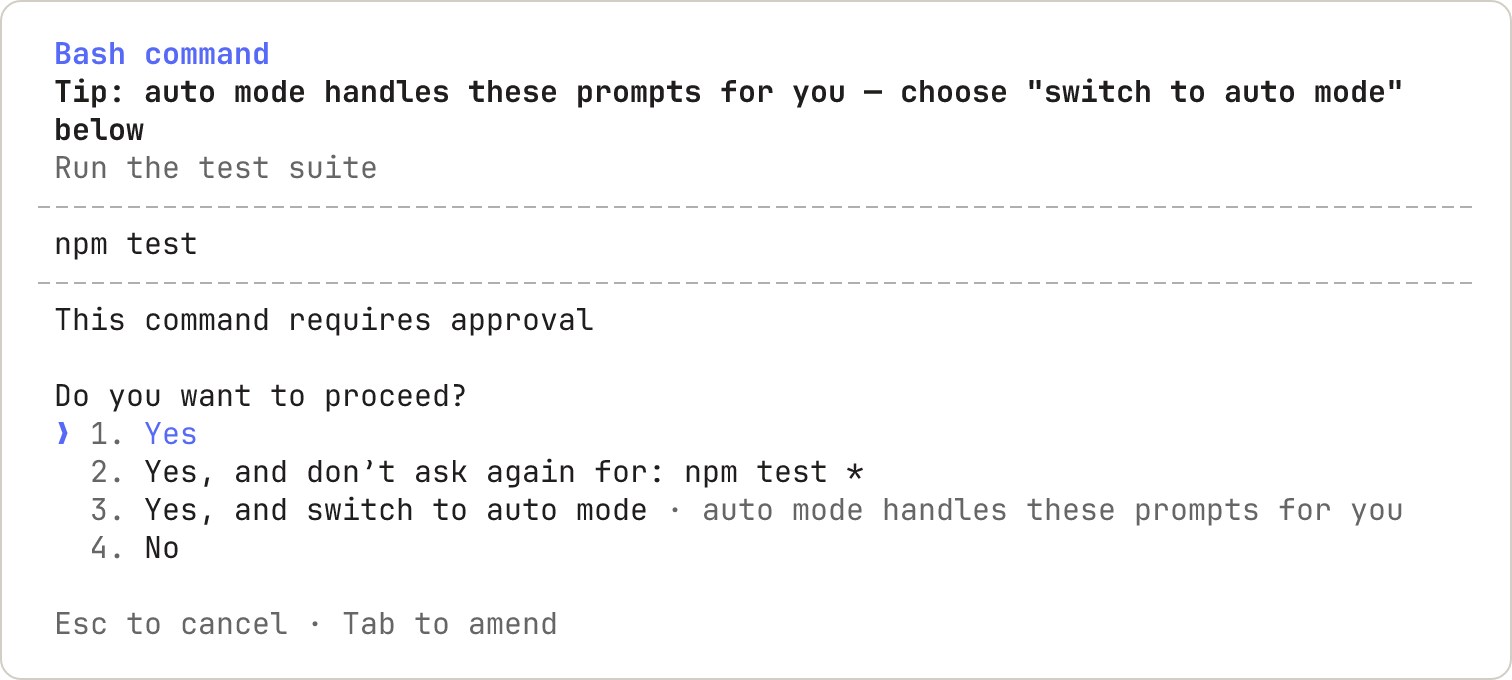
.claude/settings.local.json at the root of the git repository, resolved through worktrees to the main checkout. The rule applies to future sessions anywhere in that repository, including sessions started in subdirectories and in worktrees. A file-modification approval isn’t saved to the file: as the table shows, it lasts until the session ends. In some cases, such as outside a git repository or on Windows, Claude Code doesn’t use the repository root; Where Claude Code looks for each file lists those cases and where it saves the rule instead.
Before v2.1.211, Claude Code always saved the rule in the starting directory, so an approval granted in a worktree or subdirectory didn’t apply to the rest of the repository. Rules that earlier versions saved in a subdirectory or worktree still apply to sessions started there.
Sometimes a permission prompt offers only a one-time approval, with no “don’t ask again” option and no option to allow the action for the rest of the session. Claude Code offers those options only when the prompt can show you everything they would allow, so a rule you save from a prompt covers only what its option named. When a prompt offers only the one-time approval, approve the action once, or add the rule yourself in /permissions. To stop the prompts for a command that starts with an exec wrapper such as watch, or for a find command with an action such as -delete, see Exec wrappers and find actions.
Add a comment when you answer a permission prompt
You can attach a note to Claude when you approve or deny a single action. On most permission prompts, including Bash, PowerShell, file, and MCP tool prompts, move to Yes or No and pressTab to open a comment field on that option. WebFetch and browser prompts don’t offer the field. The options that allow the action for the rest of the session or save a rule don’t take one either.
With the field open, type the comment and then press one of these keys:
Enter: submits your answer with the comment attached. If you leave the field empty, Claude Code submits the answer without a comment.Tab: closes the field without answering. Claude Code keeps the text you typed and still sends it if you answer with that option.Shift+Tab: on a file prompt, such as an Edit or Write prompt, closes the field the same asTab. Before v2.1.235, pressingShift+Tabinside the field instead selected the option that allows the action for the rest of the session, so Claude Code approved the action for the rest of the session and discarded the comment.
- Yes: Claude Code runs the action, then sends your comment to Claude after the result.
- No: Claude Code sends your comment to Claude as the reason for the denial, and Claude continues working. If you select No without a comment on a prompt from the main conversation, Claude Code stops the turn.
Manage permissions
You can view and manage Claude Code’s tool permissions with/permissions. The dialog lists all permission rules and the settings.json file each rule comes from. You can open the dialog while Claude is working: when you add or remove a rule, Claude Code applies the change starting with Claude’s next tool call in the same turn. Before v2.1.234, Claude Code queued the command until the turn finished.
- Allow rules let Claude Code use the specified tool without manual approval.
- Ask rules prompt for confirmation whenever Claude Code tries to use the specified tool.
- Deny rules prevent Claude Code from using the specified tool.
Bash(aws *) blocks every matching call, including calls that also match a narrower allow rule like Bash(aws s3 ls). An allow rule can’t carve an exception out of a deny rule. The same precedence applies between ask and allow: a matching ask rule prompts even when a more specific allow rule also matches the same call.
Deny rules behave differently depending on whether they name a tool or scope a pattern within one. A bare tool name like Bash removes the tool from Claude’s context entirely, so Claude never sees it. If you add such a rule mid-session, Claude can’t call the tool from its next tool call on; Denying an entire tool covers what happens to a definition Claude has already seen. A scoped rule like Bash(rm *) leaves the tool available and blocks matching calls when Claude attempts them.
Bare-name removal applies to every tool except EndConversation: a deny rule can’t remove it while any other tool remains, and an ask rule never prompts for it.
Permission rules are enforced by Claude Code, not by the model. Instructions in your prompt or
CLAUDE.md shape what Claude tries to do, but they don’t change what Claude Code allows. To grant or revoke access, use /permissions, the rules described here, a permission mode, or a PreToolUse hook.Permission modes
Claude Code supports several permission modes that control how it approves tool calls. See Permission modes for when to use each one. To change the mode sessions start in, setdefaultMode in your settings files. Which mode a session starts in covers the built-in default for each plan and what the VS Code extension reads.
To prevent
bypassPermissions or auto mode from being used, set permissions.disableBypassPermissionsMode or permissions.disableAutoMode to "disable" in any settings file. These are most useful in managed settings where they can’t be overridden.
Permission rule syntax
Permission rules follow the formatTool or Tool(specifier). Parentheses inside the specifier are literal, so a command or path that contains them needs no escaping.
Match all uses of a tool
To match all uses of a tool, use only the tool name without parentheses:Bash(*) is equivalent to Bash and matches all Bash commands. As a deny rule, both forms remove the tool from Claude’s context.
Use specifiers for fine-grained control
Add a specifier in parentheses to match specific tool uses:Match by input parameter
Deny and ask rules can match a top-level input parameter on any built-in tool withTool(param:value).
To match a parameter on an MCP tool, pass a deny rule with --disallowedTools. When Claude Code loads a settings file, it skips any mcp__ rule that has parentheses. Claude Code lists the skipped rule in the invalid-settings dialog when an interactive session starts, and in claude doctor output.
A parameter rule matches when Claude calls the tool with that parameter set to that exact value. An allow rule for one parameter value wouldn’t establish that the call is safe overall, so allow rules continue to use each tool’s own specifier syntax. This works for any scalar parameter the tool accepts:
Parameter matching follows these rules:
- The parameter name must be a direct field of the tool’s input, such as
modelon the Agent tool. Fields nested inside an object or array are not matchable - Each rule names one parameter. To gate on both
modelandisolation, write two rules,Agent(model:opus)andAgent(isolation:worktree), rather than combining them in one rule - The value supports
*as a wildcard that matches any sequence of characters, soAgent(isolation:*)matches any explicit isolation value. Without*the match is exact - A parameter the model omits is never matched, so
Agent(model:*)doesn’t match a call that leavesmodelunset - The value is compared against the literal input Claude sends, before any normalization.
Agent(model:opus)matches the aliasopusbut not a full model ID - A
Skill(skill:<name>)deny rule instead matches the skill under any of its names, such as its alias or display name - Run with
--verboseto see the exact parameter names and values in each tool call - Whitespace around the colon is ignored
command for Bash and PowerShell, file_path for Read, Edit, and Write, path for Grep and Glob, notebook_path for NotebookEdit, and url for WebFetch. A rule like Bash(command:rm *) would be bypassable by a compound command, so Claude Code ignores it and emits a startup warning. Use Bash(rm *), Read(./path), or WebFetch(domain:host) instead.
Wildcard patterns
A* in a Bash rule matches any text, including spaces, so one rule covers a family of commands. A rule with no * matches one exact command.
Write the command you want Claude to run without asking, and replace the parts that vary with *. With this configuration, Claude Code runs npm scripts and git commits without asking and refuses commands that begin with git push. A push written another way, such as git -C . push, isn’t matched; see what a Bash rule doesn’t match.
* can go anywhere in the rule: at the start, in the middle, or at the end. Each row shows a rule, commands it matches, and nearby commands it doesn’t match:
Three matching rules produce those rows:
- The
*stands in for whatever text is in its place. InBash(git * main), it stands in for the subcommand, so Claude Code matches every git subcommand and every option before it. That includes-c, which makes git run a program you name. InBash(* --version), the*stands in for the program, so any program matches. - A
*at the end, with a space before it, also matches the bare command.Bash(ls *)matchesls, andBash(git log *)matchesgit log. That holds only when the trailing*is the rule’s only wildcard:Bash(* --help *)matchesnpm --help xbut notnpm --help. - The space before a trailing
*is part of the rule.Bash(ls *)requires a space afterls, solsofdoesn’t match.Bash(ls*)has no space, so it matcheslsoftoo.
:* suffix is an equivalent way to write a trailing wildcard, so Bash(ls:*) matches the same commands as Bash(ls *).
The permission dialog writes the space-separated form when you select “Yes, and don’t ask again” for a command prefix. The :* form is only recognized at the end of a pattern. In a pattern like Bash(git:* push), the colon is treated as a literal character and won’t match git commands.
Tool name wildcards
Deny and ask rules also accept glob patterns in the tool-name position. The pattern must match the full tool name:"*" matches every tool, and "mcp__*" matches every MCP tool across all servers. A tool matched by a bare-name glob deny rule is removed from Claude’s context, the same as a bare tool name, including the EndConversation exception: a glob deny can’t remove it while any other tool remains, and a glob ask never prompts for it. This configuration denies every MCP tool:
mcp__<server>__ prefix. The server segment must be glob-free so the rule names a specific server you configured. mcp__puppeteer__* matches every tool from the puppeteer server, and mcp__github__get_* matches its get_ tools. An unanchored allow glob such as "*", "B*", or "mcp__*" is skipped with a warning and doesn’t auto-approve anything.
A deny or ask rule whose tool name matches no known tool produces a startup warning to catch typos. Tool names containing _ or * are exempt from the check, and so are the names of tools Claude Code has removed, such as TaskOutput.
The label shown for a tool in the transcript and permission dialog can differ from its canonical name. For example, the tool labeled Stop Task in the transcript has the canonical name TaskStop. Permission rules and hook matchers don’t match the label, so a rule written as Stop Task doesn’t match. For deny and ask rules, the startup warning above catches the mismatch. Use the canonical names listed in the tools reference.
Tool-specific permission rules
Bash
Bash rules match the whole command text, with* standing in for any text. Wildcard patterns shows which commands each rule shape matches and where to put the *. The rest of this section covers how Claude Code matches compound commands and wrappers, which wrappers and find actions a prefix rule can’t approve, what a rule doesn’t match, read-only commands, and redirections.
Compound commands
Deny and ask rules apply when any subcommand matches them, including a command nested inside a subshell, a command substitution, or a control-flow body such as afor loop. An ask rule like Bash(git clean *) still prompts you for cd /tmp && git clean -f or echo "$(git clean -f)", even in auto mode.
When && or || has nothing after it, such as in npm test &&, Claude Code treats the command as unparseable and doesn’t split it into subcommands for allow-rule matching, so a rule such as Bash(npm *) doesn’t approve it.
When you approve a compound command with “Yes, and don’t ask again”, Claude Code saves a separate rule for each subcommand that requires approval, rather than a single rule for the full compound string. For example, approving git status && npm test saves a rule for npm test, so future npm test invocations are recognized regardless of what precedes the &&. Subcommands like cd into a directory outside your working directories generate their own Read rule for that path. Up to 5 rules may be saved for a single compound command.
Wrappers
Before matching Bash rules, Claude Code strips a fixed set of wrappers, so a rule likeBash(npm test *) also matches timeout 30 npm test. The stripped wrappers are timeout, time, nice, nohup, and stdbuf, plus the shell builtins command and builtin, and zsh’s noglob. Each runs its argument as the actual command. Two related forms aren’t stripped: the query form command -v, which looks up a command rather than running one, and zsh’s nocorrect.
Claude Code also strips a leading assignment of certain known-safe environment variables, so Bash(npm test *) matches NODE_ENV=test npm test. An allow rule won’t match past an assignment of any other variable. A deny or ask rule matches past any leading assignment, so Bash(rm *) in deny still matches FOO=bar rm -rf tmp/.
Bare xargs is also stripped, so Bash(grep *) matches xargs grep pattern. Stripping applies only when xargs has no flags: an invocation like xargs -n1 grep pattern is matched as an xargs command, so rules written for the inner command do not cover it.
This wrapper list is built in and is not configurable. Development environment runners such as direnv exec, devbox run, mise exec, npx, and docker exec are not in the list. Because these tools execute their arguments as a command, a rule like Bash(devbox run *) matches whatever comes after run, including devbox run rm -rf .. To approve work inside an environment runner, write a specific rule that includes both the runner and the inner command, such as Bash(devbox run npm test). Add one rule per inner command you want to allow.
Exec wrappers and find actions
A prefix rule like Bash(watch *) or Bash(find *) can’t auto-approve the following commands, so in Manual mode they prompt:
- Exec wrappers: such as
watch,setsid,ionice, andflock find: with an action that runs commands, deletes files, or writes files, such as-exec,-delete, or-fprint, or with-files0-from, which takes the paths to search from a file
* in it, write an exact-match rule for the full command string, such as Bash(find build -type f -delete).
When the command has a *, as in find . -name '*.tmp' -delete, Claude Code reads the rule as a wildcard pattern, not an exact match, so the command still prompts. Approve it each time it prompts, or use a PreToolUse hook that returns "allow" for it.
What a Bash rule doesn’t match
A Bash rule matches the command text Claude writes, after Claude Code splits compound commands and strips wrappers. It doesn’t match the same program invoked in a different form, so a deny or ask rule covers the invocation Claude usually produces and isn’t a security boundary around the program. These rules indeny or ask stop the first form and not the others:
Your other rules and the permission mode decide the commands in the last column.
For filesystem and network enforcement that doesn’t depend on the command text, use sandboxing. To inspect the full command text with your own logic before it runs, use a PreToolUse hook.
Read-only commands
Claude Code recognizes a built-in set of Bash commands as read-only and runs them without a permission prompt in every mode, except aspermissions.blockReadsOutsideWorkingDirectories changes for paths outside your working directories. The set includes ls, cat, echo, pwd, head, tail, grep, find, wc, which, diff, stat, du, cd, and read-only forms of git. The set is not configurable; to require a prompt for one of these commands, add an ask or deny rule for it. In auto mode, these commands can also wait for the classifier’s review; see how the classifier evaluates actions.
A redirect such as ls > out.txt adds a check on the target. See Redirections.
Unquoted glob patterns are permitted for commands whose every flag is read-only, so ls *.ts and wc -l src/*.py run without a prompt.
In Manual mode, commands from this set still prompt in these cases:
- Unquoted globs for commands with write-capable flags: commands with write-capable or exec-capable flags, such as
find,sort,sed, andgit, prompt when an unquoted glob is present, because the glob could expand to a flag like-delete. dockerpointed at another daemon: read-only forms ofdockerprompt when the command carries a flag that selects a different daemon, such as-H,--context, or Podman’s--urland--connection.filewith path-opening flags:fileprompts when it passes-m/--magic-fileor-f/--files-from, because those flags makefileopen the paths named in the flag’s value.psthat could print environment variables:psprompts when one of its arguments could act as theeoption, such as inps auxeorps aux -e, because that option prints process environment variables.ps auxandps -efrun without a prompt. The check on dashed forms such asps aux -erequires Claude Code v2.1.290 or later.- Network paths on Windows: a command whose arguments include a network (UNC) path, such as
\\server\share\file, prompts because accessing a network path can send your Windows credentials to the host it names. The same check applies to PowerShell tool commands. - Writes to special shell variables: a command that sets, unsets, or loops over certain special shell variables, such as
PATHorIFS, prompts even when the rest of the command is read-only. - Commands the analysis can’t parse: when Claude Code can’t fully parse a command, it asks for approval instead of treating the command as read-only. Commands longer than 10,000 characters always prompt because they exceed what the analysis parses.
cd into a path inside your working directory or an additional directory is also read-only, and a compound command like cd packages/api && ls runs without a prompt when each part qualifies on its own. These combinations prompt even when each part is read-only:
cdwithgit: prompts when thecdchanges into a different directory, since runninggitin a new directory can execute that directory’s hooks. Acdwhose target resolves to the current working directory is a no-op and doesn’t trigger the prompt.cdwith a redirect: prompts when Claude Code can’t determine which directory the redirect target resolves against after thecdruns. A command whose only redirect target is/dev/null, such ascd app; grep -r pattern . 2>/dev/null, doesn’t prompt, because/dev/nulldoesn’t depend on the working directory.
Redirections
When a command redirects output or input, Claude Code checks the redirect target against your file rules as if Claude wrote or read that file directly:- Output redirects: for
> file,>> file, or2> file, the check covers yourEditallow and deny rules, protected paths, and the working directories. A rule such asBash(git commit *)allows the command, not the target. A target that starts with~or contains a glob character needs your approval. - Input redirects: for
< file, the check covers yourReadallow and deny rules and the working directories. A target outside the working directories needs your approval unless an allow rule covers it. A target that contains a glob pattern, or a relative path that follows acdin the same command, needs your approval even when an allow rule covers it. Claude Code checks input targets in v2.1.257 and later.
/dev/null, file-descriptor forms such as 2>&1 and <&3, and here-docs and here-strings.
Claude Code also checks the files a tee command writes, including in a pipeline such as make | tee build.log. The check covers your Edit allow and deny rules, protected paths, and the working directories. An allow rule such as Bash(tee *) doesn’t cover a destination outside the working directories. Claude Code checks tee targets in v2.1.269 and later.
PowerShell
PowerShell permission rules use the same shape as Bash rules. Wildcards with* match at any position, the :* suffix is equivalent to a trailing *, and a bare PowerShell or PowerShell(*) matches every command. This configuration allows Get-ChildItem and git commit commands while blocking Remove-Item:
PowerShell(Get-ChildItem *) matches gci, ls, and dir as well. Matching is case-insensitive.
Claude Code parses the PowerShell AST and checks each command in a compound command independently. Pipeline operators |, statement separators ;, and on PowerShell 7+ the chain operators && and || split a compound command into subcommands. A rule must match every subcommand for the compound command to be allowed.
Read and Edit
To block Claude’s file tools from reading a file or directory, add aRead deny rule for its path, such as Read(./.env) or Read(./secrets/**); Exclude sensitive files has a paste-ready example. If your project has a .claudeignore file, it has no effect, so move its entries into Read deny rules.
Edit rules apply to all built-in tools that edit files. Claude makes a best-effort attempt to apply Read rules to all built-in tools that read files like Grep and Glob, to @file mentions in your prompts, and to the selection and open-file context that a connected IDE shares with Claude.
A Read deny rule also blocks the Edit and Write tools on the same path, including creating a new file there. NotebookEdit isn’t covered, so add an Edit deny rule for paths no tool may change. The check requires Claude Code v2.1.208 or later on edits, and v2.1.228 or later on writes.
Claude Code checks file permissions against Edit(path) and Read(path) rules only. If you write a path rule for Write, NotebookEdit, Glob, or the legacy MultiEdit tool instead, Claude Code accepts the rule but never consults it, and warns at startup, except for a Glob rule passed in --allowedTools. Use Edit(docs/**) in place of Write(docs/**), NotebookEdit(docs/**), or MultiEdit(docs/**), and Read(docs/**) in place of Glob(docs/**). Claude Code doesn’t warn about a tool-name rule with no path, such as a deny rule for Write; it matches that rule at the tool level everywhere. Requires Claude Code v2.1.210 or later.
Read and Edit rules both use gitignore pattern syntax with four distinct pattern types; for single-segment directory patterns, the matching depth also depends on the rule type, described later in this section:
A
/path pattern anchors at a directory associated with the settings source that defines it, so the same rule matches different locations depending on where you put it:
A rule you add through
/permissions follows the row for the settings file you save it to.
Local settings rules anchor at the session’s primary working directory, not at the repository root where Claude Code stores the file in v2.1.211 and later. In a session started at the repository root, the two directories are the same; in a worktree session, a shared rule such as Edit(/src/**) matches that worktree’s own src/ directory.
A deny rule such as Read(/secrets/**) in user settings blocks ~/.claude/secrets/**, not a secrets directory in your project. To write a rule in user settings that applies inside every project, use a // absolute path or a ~/ home-relative path instead.
On Windows, paths are normalized to POSIX form before matching. C:\Users\alice becomes /c/Users/alice, so use //c/**/.env to match .env files anywhere on that drive. To match across all drives, use //**/.env.
Examples:
Edit(/docs/**): edits in<primary working directory>/docs/, not/docs/or<primary working directory>/.claude/docs/Read(~/.zshrc): reads your home directory’s.zshrcEdit(//tmp/scratch.txt): edits the absolute path/tmp/scratch.txtRead(src/**): as an allow rule, reads from<current-directory>/src/only; as a deny or ask rule, matches asrcdirectory at any depth under the current directory
Read(.env) and Read(**/.env) are equivalent:
A relative pattern with a single directory segment, such as
src/**, matches at different depths depending on the rule type:
- Allow rules:
Edit(src/**)matches only<cwd>/srcand the files under it. To allow a directory name at any depth, writeEdit(**/src/**). - Deny and ask rules:
Read(secrets/**)matches a directory namedsecretsat any depth under the current directory, so the rule also applies to nested copies.
Edit(/src/**) and Edit(src/components/**) match only at their anchored location, while Edit(**/src/**) matches at any depth.
The following example shows each pattern shape against a project with a top-level src/ directory and a nested copy under vendor/:
In gitignore patterns,
* matches within a single path segment and can appear at any position in the pattern, while ** matches across directories.[, ], and *, so the generated rule matches only the literal path you approved. Rules you write yourself aren’t escaped. Before v2.1.202, Claude Code saved the path unescaped, so a generated rule for a directory named [2024-06] Reports could fail to match its own path or match unintended sibling directories.
You don’t need to escape parentheses in a path, so Edit(./Finance (2024)/**) matches the Finance (2024) folder as spelled.
A deny or ask rule whose path isn’t usable as a gitignore pattern still guards that exact path. An allow rule with an unusable pattern doesn’t approve anything.
A deny or ask pattern that starts with ! is a gitignore negation. It carves the paths it matches out of the path or ./path rules listed before it. In one settings file’s deny list, Read(*.env) followed by Read(!sample.env) blocks every file whose name ends in .env at any depth, except files named sample.env. A ! rule listed first carves nothing out.
The carve-out reaches only rules from the same source. A Read(!.env) in project settings or in --disallowedTools doesn’t cancel a Read(./.env) deny from managed settings or any other settings file.
Two limits narrow what a ! pattern can carve out:
- Claude Code reads a
!pattern relative to the current directory even when/,~/, or//follows the!, so the pattern can’t reach a rule anchored with one of those prefixes.Read(!~/notes/public/**)carves nothing out ofRead(~/notes/**). - A carve-out can’t reopen a file inside a directory that a rule blocks as a whole. With
Read(secrets/**)andRead(!secrets/public/**), Claude Code still blockssecrets/publicalong with the rest ofsecrets.
Symlinks
When a file path Claude requests goes through a symlink, the permission check covers two paths: the one Claude requested and the file it resolves to. This applies to symbolic links on macOS, Linux, and Windows, and to directory junctions on Windows.How rules match a symlinked path
Allow and deny rules treat the requested path and the file it resolves to differently:- Allow rules: apply only when both the requested path and the file it resolves to match. A read through a symlink inside an allowed directory that points outside it doesn’t match the rule.
- Deny rules: apply when either the requested path or the file it resolves to matches. A symlink that points to a denied file is itself denied. For example, with
Read(./project/**)allowed andRead(~/.ssh/**)denied, a symlink at./project/keypointing to~/.ssh/id_rsais blocked: the target fails the allow rule and matches the deny rule.
//, ~/, or / pattern also applies at the directory’s real location. For example, on macOS, where /etc resolves to /private/etc, Read(//etc/**) blocks /private/etc/hosts too. Before v2.1.268, a deny or ask rule written through a symlinked directory didn’t apply to a path given by its real location.
Grep and Glob search the directory the path argument resolves to. Claude Code applies Read deny rules to that directory.
Writes through a symlink
If the path Claude asks to edit or write is itself a symlink, the Edit and Write tools refuse the write and direct Claude to the link’s target. A write can still pass through a symlink when a directory on the way to the file is a symlink, or when a Bash or PowerShell command does the writing. For those writes, what happens depends on where the file the write resolves to sits relative to your working directories and the protected paths:- Resolves outside the working directories: when the requested path is inside your working directories and the file it resolves to isn’t, the write isn’t auto-approved in
acceptEditsmode. In auto mode, unless an allow rule approves the write, you’re prompted for it instead of the classifier deciding. The prompt names the path the write resolves to. - Resolves to a protected path that the requested path doesn’t name: the protected paths table gives the outcome for each permission mode, except that where the table routes the write to the classifier, this write prompts you instead.
Paths that can’t be resolved or that change
When Claude Code can’t determine where a path leads on disk, for example because symlinks on it form a loop, the Read, Edit, and Write tools refuse the operation. When a tool then opens the approved file, it confirms that the path still resolves to the location the permission check approved.Network paths
When Claude’s file-reading tools, such as Read, Grep, and Glob, read from a network path, the read gets its own permission check. A network path is one that can reach another computer: on Windows, a UNC path such as\\server\share\file, and on macOS and Linux, a /net automount path such as /net/fileserver/notes.txt. Looking up such a path can contact the host it names, and on Windows that contact can send the host your credentials. Shell commands have their own check: in Manual mode, a read-only Bash or PowerShell command whose arguments include a UNC path still prompts on Windows.
In Claude Code v2.1.292 and later, each of these leaves the prompt in place:
- Allow rules: a rule doesn’t pre-approve the read, including a rule for the whole tool, such as
Read - PreToolUse hooks: a hook that returns
"allow"doesn’t skip the prompt - Auto mode: the prompt comes to you, and the classifier doesn’t decide the read
dontAsk mode, Claude Code denies the read instead of prompting. In bypassPermissions mode, and in interactive terminal sessions in plan mode with bypass permissions available, the read runs without this prompt.
To read files on a network share without this prompt, give the share a local path first:
- Windows: map the share to a drive letter and pass the drive with
--add-dirwhen you launch Claude Code, as Working directories describes - macOS and Linux: mount the share at a local path, such as a directory under
/mntor/Volumes, and read the files from there, as Working directory is a network path describes
WebFetch
WebFetch rules use adomain: prefix and match against the hostname of the requested URL. Matching is case-insensitive, supports * wildcards, and strips a trailing . from both the rule and the hostname so example.com. and example.com are treated the same.
WebFetch(domain:example.com)matches requests toexample.comonly. To also cover subdomains such asapi.example.com, add aWebFetch(domain:*.example.com)ruleWebFetch(domain:*.example.com)matches any subdomain at any depth, such asapi.example.comora.b.example.com, but notexample.comitselfWebFetch(domain:*)matches every domain. It isn’t the same as a bareWebFetchrule; see Allow or deny every fetch
*. or a bare *, the wildcard matches only the text between two dots. WebFetch(domain:example.*) matches example.org, where * becomes org, but not example.evil.com, where * would have to become evil.com and cross a dot. This keeps a trailing wildcard from matching domains an attacker could register.
Wildcards in WebFetch rules require Claude Code v2.1.172 or later to match fetches.
Allow or deny every fetch
A bareWebFetch rule is the tool name with no domain: part, such as "deny": ["WebFetch"]. Both it and WebFetch(domain:*) cover every URL, but Claude Code applies them differently, and only the domain: form also adds its domain to the sandbox’s allowed or denied domain list. That section lists the wildcard forms the sandbox honors and the version that added bare *.
Each row shows what a rule does in the allow list and in the deny list:
The two forms also differ on reads of artifacts, the pages the Artifact tool publishes on claude.ai. A bare
WebFetch deny or ask rule doesn’t apply to those reads. A domain: rule covering claude.ai or the *.claudeusercontent.com content host, such as WebFetch(domain:claude.ai) or WebFetch(domain:*), denies each read or prompts before it. An Artifact rule does the same.
When a rule blocks a read, the denial names the rule. Before v2.1.268, a bare WebFetch deny rule blocked every artifact read, and a bare ask rule prompted before each one.
To let Claude fetch freely while keeping the sandbox allowlist as it is, use the bare form. This settings.json does that:
curl against a host outside the sandbox allowlist, Claude Code still prompts you for that host, because the bare rule didn’t add the host to the allowlist.
In auto mode, Claude instead names the host in the command’s per-command allowed domains for the classifier to review.
MCP
MCP rules use the server name as configured in Claude Code, optionally followed by the name of a tool from that server.mcp__puppeteermatches any tool provided by thepuppeteerservermcp__puppeteer__*uses wildcard syntax and also matches all tools from thepuppeteerservermcp__puppeteer__puppeteer_navigatematches thepuppeteer_navigatetool provided by thepuppeteerserver
ask and that setting reaches Claude Code in your session, allow rules for that tool don’t take effect: Claude Code prompts on every call, even in auto and bypassPermissions modes. In dontAsk mode, which never prompts, Claude Code denies the call instead. Tools from connectors Claude Code fetches itself appear as mcp__claude_ai_<server>__<tool>.
In a Cowork session in the Claude Desktop app, Claude runs shell commands through Cowork’s mcp__workspace__bash tool rather than the built-in Bash tool, and Cowork likewise provides mcp__workspace__web_fetch for web fetches. Claude Code also applies deny rules that name the whole Bash or WebFetch tool to these Cowork tools, so a managed Bash deny rule stops Claude from running shell commands in Cowork. When Claude Code blocks such a call, the message names the Cowork tool: Permission to use mcp__workspace__bash has been denied. Allow rules don’t carry over: Claude Code never applies a Bash allow rule to mcp__workspace__bash.
Agent (subagents)
UseAgent(AgentName) rules to control which subagents Claude can use:
Agent(Explore)matches the Explore subagentAgent(Plan)matches the Plan subagentAgent(my-custom-agent)matches a custom subagent namedmy-custom-agent
deny array in your settings or use the --disallowedTools CLI flag to disable specific agents. To disable the Explore agent:
Cd
Cd rules control which directories the /cd command can move the session to. Cd is not a model-invocable tool: Claude can’t call it, and the rules apply only when you run /cd yourself.
A bare Cd deny rule disables /cd entirely. A Cd(<path-pattern>) deny rule blocks matching targets. Deny rules check every spelling of the target, including each symlink hop it resolves through, so a rule written for one path also blocks targets that resolve to it.
Adding any Cd allow rule switches /cd to allowlist mode: the resolved target directory must match one of your allow rules, or /cd refuses. With no Cd rules configured, /cd keeps its default behavior and prompts you to trust an unfamiliar directory.
Path patterns share the //, ~/, and / anchors from Read and Edit rules, but matching is anchored to the whole directory path rather than gitignore-style. * matches exactly one path segment and ** matches across segments. A trailing /** also matches its named root.
Extend permissions with hooks
Claude Code hooks let you register custom shell commands that evaluate permissions at runtime. When Claude Code makes a tool call, PreToolUse hooks run before the permission prompt, for every tool exceptEndConversation. The hook output can deny the tool call, force a prompt, or skip the prompt to let the call proceed.
PreToolUse hook decisions don’t bypass permission rules. Claude Code evaluates deny and ask rules regardless of what a PreToolUse hook returns: a matching deny rule blocks the call, and a matching ask rule still prompts even when the hook returned "allow" or "ask". This preserves the deny-first precedence described in Manage permissions, including deny rules set in managed settings.
That precedence covers hooks in settings files and in a plugin’s hooks/hooks.json. A mod you install that handles tool.check answers after the rules and the PreToolUse hooks have decided, and its answer can replace theirs:
- Ask rules: the mod can approve a call that an ask rule would prompt for
- A block from a
PreToolUsehook: the mod can approve the call, unless the hook is in managed settings - The auto mode classifier: in auto mode, a call the mod approves runs without a classifier check
- Deny rules: on a machine with managed settings, or when you’re signed in with a Team or Enterprise plan, deny rules hold over the mod by default, and your organization can change that. Anywhere else, the mod can approve a call that a deny rule refuses.
AskUserQuestion or an MCP tool marked requiresUserInteraction, a mod’s tool.check approval doesn’t skip the prompt. Requires Claude Code v2.1.292 or later. MCP tools marked requiresUserInteraction also still prompt when a hook returns "allow", as do reads from network paths and connector tools your organization set to ask in sessions where that setting reaches Claude Code.
A blocking hook also takes precedence over allow rules. A hook that exits with code 2 stops the tool call before permission rules are evaluated, so the block applies even when an allow rule would otherwise let the call proceed. To run all Bash commands without prompts except for a few you want blocked, add "Bash" to your allow list and register a PreToolUse hook that rejects those specific commands. See Block edits to protected files for a hook script you can adapt.
Working directories
By default, Claude has access to files in the directory where you launched it. That directory is the session’s primary working directory until you move the session with/cd. You can extend this access:
- During startup: use
--add-dir <path>CLI argument - During session: use
/add-dircommand - Persistent configuration: add to
additionalDirectoriesin settings files
\\server\share, as working directories, because looking one up can contact the host it names. On Windows, map the share to a drive letter instead and pass the drive with --add-dir at launch.
Set permissions.blockReadsOutsideWorkingDirectories to make the file tools refuse the paths it fences in every permission mode. In auto mode, Claude Code offers to turn it on the first time Claude reads outside the working directories.
In background sessions on macOS, the session host requests access to protected folders such as ~/Desktop, ~/Documents, and ~/Downloads separately from your terminal when Claude needs to read or write files there; if reads there fail with Operation not permitted, see how to grant folder access to background sessions.
Move the session to another directory
To move the session to a different primary working directory, rather than adding a directory alongside the current one, run/cd <path>. Claude Code keeps the conversation, loads the new directory’s CLAUDE.md, and prompts you to trust the workspace if you haven’t worked in it before. Afterward, Claude Code finds the moved session when you run --resume from the new directory.
As soon as you move, Claude Code applies the new directory’s project configuration:
- Its project settings, including their permission rules and hooks
- Its
.mcp.jsonservers, subject to the same server approval as at startup, and the local-scope MCP servers you registered in it - The plugins its settings enable, its skills, and its subagents
- Its
envvalues, applied on top of the environment variables from the previous directory’s settings, which stay in effect
--add-dir or /add-dir. Hooks the move activates still receive ${CLAUDE_PROJECT_DIR} set to the project root where the session started.
When the new directory isn’t trusted yet, Claude Code lists in the trust prompt the allow rules, additional directories, hooks, and helper commands the directory’s settings would activate, so you can review them before you accept. If you decline, the session stays where it is. Before v2.1.246, /cd didn’t apply the new directory’s settings, hooks, MCP servers, or skills until you resumed the session, and its trust prompt didn’t list what the directory’s settings would activate.
Restrict or disable /cd targets with Cd permission rules.
Additional directories grant file access, not configuration
Adding a directory extends where Claude can read and edit files. It doesn’t make that directory a full configuration root: most.claude/ configuration is not discovered from additional directories, though a few types are loaded as exceptions.
These exceptions apply only to directories added with the --add-dir flag or the /add-dir command, including directories the Agent SDK adds through the flag. Directories listed in permissions.additionalDirectories in a settings file grant file access only and don’t load any of the configuration below.
The Agent SDK’s additionalDirectories option in TypeScript and add_dirs option in Python receive the exceptions too, even though the TypeScript option shares its name with the settings key. The SDK passes each entry to Claude Code as --add-dir, so those directories behave like flag-added directories. Skills, commands, and subagents from any flag-added directory load through the project setting source, so they don’t load when you exclude that source with --setting-sources on the CLI or settingSources in the SDK, and bare mode skips the commands and subagents among them.
The following configuration types are loaded from --add-dir directories:
To load the skills, commands, and subagents from a subdirectory of your primary working directory mid-session, run
/add-dir with that subdirectory’s path. Claude Code loads them for the rest of the session without prompting you or adding a working directory, because the subdirectory is already readable. This requires Claude Code v2.1.257 or later.
Claude Code discovers output styles from the current working directory and its parents, your user directory at ~/.claude/, and managed settings. Hooks and other .claude/settings.json keys load from the current working directory’s .claude/ folder with no parent-directory fallback, alongside your user ~/.claude/settings.json and managed settings. .claude/settings.local.json loads from the git repository root instead, even when you start Claude Code in a subdirectory, except in the cases where Claude Code doesn’t use the repository root, such as on Windows; before v2.1.211, it too loaded only from the current working directory. Agent SDK sessions load it from the working directory in all versions.
To share that configuration across projects, use one of these approaches:
- User-level configuration: place files in
~/.claude/agents/,~/.claude/output-styles/, or~/.claude/settings.jsonto make them available in every project - Plugins: package and distribute configuration as a plugin that teams can install
- Launch from the config directory: run Claude Code from the directory containing the
.claude/configuration you want
How permissions interact with sandboxing
Permissions and sandboxing are complementary security layers:- Permissions control which tools Claude Code can use and which files or domains it can access. They apply to Bash, Read, Edit, WebFetch, MCP, and every other tool, except that a deny or ask rule can’t block
EndConversationwhile any other tool remains. - Sandboxing provides OS-level enforcement that restricts shell commands’ filesystem and network access. It applies to Bash, PowerShell, and Monitor tool commands and their child processes.
autoAllowBashIfSandboxed at its default of true, sandboxed Bash commands run without prompting even if your permissions include a bare Bash ask rule, or the equivalent Bash(*) form: the sandbox boundary substitutes for that whole-tool prompt.
In plan mode, Claude Code skips this substitution. Without an ask rule, the built-in read-only commands still run without prompting, and any other shell command goes through the regular permission flow while you are still planning; see plan mode for how Claude Code gates commands there. With a bare Bash ask rule, every Bash command prompts, including sandboxed read-only commands, the same as outside sandboxing. Before v2.1.212, the substitution applied in plan mode as well.
These checks still apply:
- Content-scoped ask rules like
Bash(git push *)still force a prompt - Explicit deny rules still apply
rmorrmdircommands that target a critical path still go through the regular permission flow- Other sandboxed commands can go through the regular permission flow too, as Auto-allow mode describes
Bash ask rule as usual. See sandbox modes to change this behavior.
Managed settings
For organizations that need centralized control, administrators deploy managed settings that user and project settings can’t override, apart from a few security-sensitive keys. Deploy managed settings covers the delivery mechanisms, precedence within the managed tier, and the keys that only managed settings can set. One of those keys,allowManagedPermissionRulesOnly, makes managed settings the only settings source of permission rules. Its entry lists every source Claude Code then ignores.
disableBypassPermissionsMode is typically placed in managed settings to enforce organizational policy, but it works from any scope. A user can set it in their own settings to lock themselves out of bypass mode.
Settings precedence
Permission rules follow the same settings precedence as all other Claude Code settings, with managed settings highest: no other level, including command line arguments, can override a managed permission rule. If a tool is denied at any level, no other level can allow it. For example, a managed settings deny can’t be overridden by--allowedTools, and --disallowedTools can add restrictions beyond what managed settings define.
The same holds across settings scopes: if user settings allow a permission and project settings deny it, the deny rule blocks it. The reverse is also true: a user-level deny blocks a project-level allow, because deny rules from any scope are evaluated before allow rules.
This precedence is between settings files and command line arguments. For whether a deny rule holds over a mod you install, see Extend permissions with hooks.
Embedding hosts can supply additional managed policy via the SDK managedSettings option, including permission allow rules unless the admin sets the allowManaged*Only locks; Deliver policy to Claude Desktop sessions covers when embedder policy applies at all.
Project allow rules and workspace trust
permissions.allow rules and permissions.additionalDirectories entries in a project’s .claude/settings.json grant capability, so Claude Code applies them only after you accept the workspace trust dialog for that folder. The dialog lists the rules and directories the folder would grant so you can review them first. deny and ask rules aren’t affected, since they only restrict.
Claude Code keys and stores the trust you accept according to where you start it:
- In a repository, Claude Code keys the trust on the git repository root, so the trust covers the whole repository apart from any git repository nested inside it, such as a submodule. In a worktree, it uses the main checkout’s root, as it does for saved rules.
- Outside a repository, Claude Code keys the trust on the directory you started it from, and the trust covers any subdirectory of that directory apart from a git repository nested inside it, such as a clone. Each covered subdirectory then counts as a folder whose parent you trusted.
- When you start in your home directory, Claude Code holds the trust for the current session only and doesn’t write it to disk; see the additional safeguards note.
claude -p run or an SDK session never shows it, and trusting a parent folder doesn’t count for these rules, so What runs before you trust a folder says which repository content Claude Code still uses in each of those two situations.
Before it starts or restarts a background session, Claude Code also checks workspace trust for the directory the session runs in. If you run claude --bg from a terminal in a directory you haven’t trusted, the trust dialog appears first and the session starts once you accept it. Where no dialog can appear, such as in a script, the command exits with a Workspace not trusted error instead.
When your local settings file needs trust
.claude/settings.local.json is normally your own file, so Claude Code applies its allow rules and additional directories without the trust step. When the file is tracked in git, or .claude is a symlink, Claude Code treats it as repository-supplied instead and holds its rules until you trust the folder.
Claude Code runs git to tell the two apart, and it runs git only once you’ve trusted the folder: you accepted the trust dialog for it or for a parent directory whose trust extends to it, or you’re in a -p or SDK session, which counts as accepted. Until then, where you started Claude Code decides what happens to the file’s rules:
- In your configuration home: Claude Code applies that folder’s
.claude/settings.local.jsonright away without running git. Your configuration home is your home directory, or a directory whose.claudesubdirectory you’ve set asCLAUDE_CONFIG_DIR. If thatCLAUDE_CONFIG_DIRdirectory sits inside a git repository and Claude Code keeps your local settings at the repository root instead, it holds the rules like anywhere else. - Anywhere else: Claude Code holds the file’s rules like project settings. Once the check has run, Claude Code applies the rules of an untracked file, or of a file in a directory outside any git repository, even though you haven’t trusted that exact folder.
The configuration-home exception skips only the trust step.
~/.claude/settings.local.json is still local scope, so Claude Code reads it only in sessions you start in your home directory itself, not in every project. To apply permission rules across all your projects, add them to your user settings instead: ~/.claude/settings.json, or $CLAUDE_CONFIG_DIR/settings.json when CLAUDE_CONFIG_DIR is set.What runs before you trust a folder
Each row is one kind of content a repository can supply. The columns are the two situations in which you haven’t trusted the folder itself: you trusted only a parent folder, or you ranclaude -p or the SDK there, which never shows the trust dialog. The parent-folder column doesn’t apply inside a nested repository: in an interactive session Claude Code shows the trust dialog for it, and a claude -p or SDK run there follows the claude -p column.
For the rows that need this exact folder trusted, trust it by hand: set
projects["<path>"].hasTrustDialogAccepted to true in ~/.claude.json, where <path> is the repository root, or the folder itself outside a repository. Claude Code prints the exact key in the debug log line for a skipped subagent hook or inline MCP server, in the stderr warning for skipped allow rules, and in the headersHelper not run line for a skipped helper.
Before you run claude -p in a repository you didn’t write, decide what it may run on your machine:
- Pass
--setting-sources user, or set the SDK’ssettingSourceswithout project settings, so Claude Code reads neither the project’s settings files nor its.mcp.json - Start with
--bareso Claude Code reads no hooks, skills, custom commands, subagents, plugins, or.mcp.jsonservers from the project. The project’senvblock and helpers such asawsAuthRefreshin its settings files still apply, and Claude Code readsapiKeyHelperonly from--settings - Pass
--settings '{"disableAllHooks": true}'to turn hooks off for that run. Setting it in your user settings alone isn’t enough, because the repository’s project settings take precedence over yours and can set it back tofalse - Add a
disabledMcpjsonServersentry to reject a.mcp.jsonserver by name in every session type
Example configurations
This repository includes starter settings configurations for common deployment scenarios. Use these as starting points and adjust them to fit your needs.See also
- All settings: every settings key, including the permission keys
- Configure auto mode: tell the auto mode classifier which infrastructure your organization trusts
- Sandboxing: OS-level filesystem and network isolation for Bash commands
- Authentication: set up user access to Claude Code
- Security: security safeguards and best practices
- Hooks: automate workflows and extend permission evaluation