

When to use agent teams
Agent teams are most effective for tasks where parallel exploration adds real value. See use case examples for full scenarios. The strongest use cases are:- Research and review: multiple teammates can investigate different aspects of a problem simultaneously, then share and challenge each other’s findings
- New modules or features: teammates can each own a separate piece without stepping on each other
- Debugging with competing hypotheses: teammates test different theories in parallel and converge on the answer faster
- Cross-layer coordination: changes that span frontend, backend, and tests, each owned by a different teammate
Compare with subagents
Both agent teams and subagents let you parallelize work, but they operate differently. For separate sessions that pass messages to each other without a team, see cross-session messaging.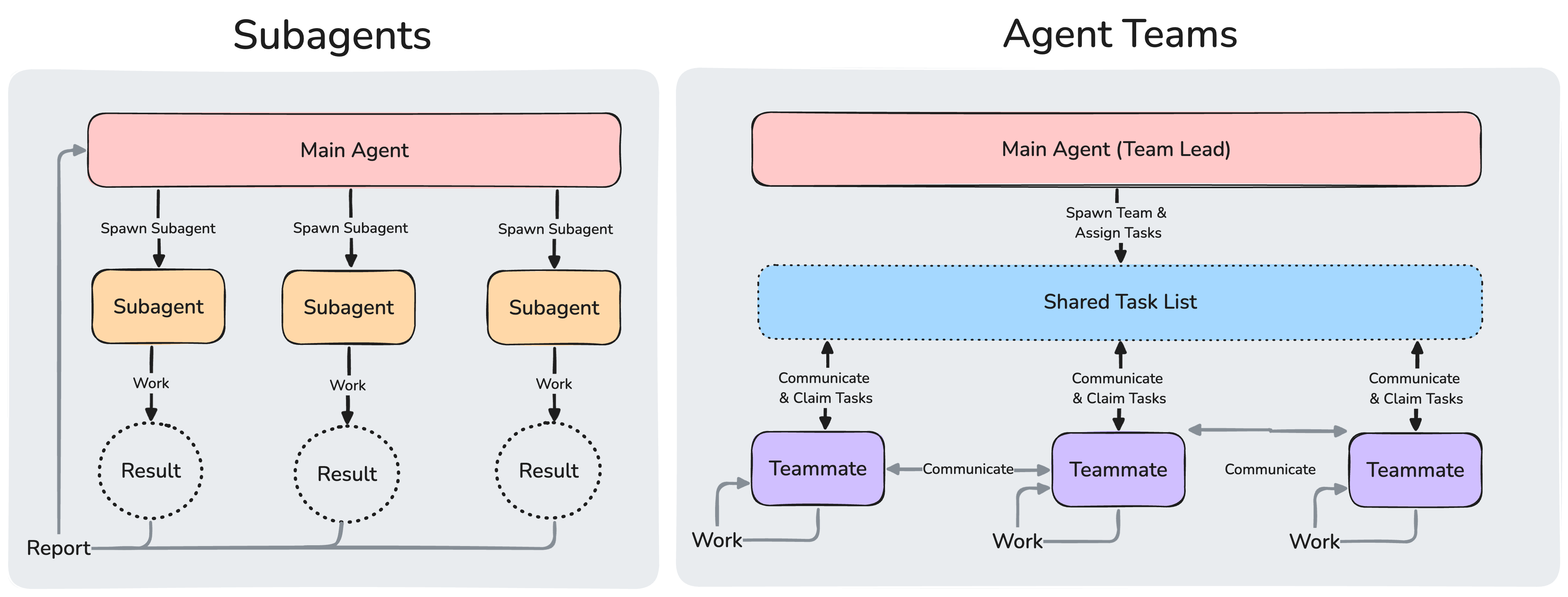
Subagents report results back to the main agent. In agent teams, teammates share a task list, claim work, and communicate directly with each other.
Use subagents when you need quick, focused workers that report back. Use agent teams when teammates need to share findings, challenge each other, and coordinate on their own.
Enable agent teams
Agent teams are disabled by default. Enable them by setting theCLAUDE_CODE_EXPERIMENTAL_AGENT_TEAMS environment variable to 1, either in your shell environment or through settings.json:
settings.json
-p flag, including Agent SDK sessions, Claude doesn’t spawn teammates, and a subagent that Claude names runs as an ordinary subagent even with agent teams enabled.
Start your first agent team
After enabling agent teams, describe the task and the teammates you want in natural language. Claude spawns them and coordinates work based on your prompt. This example works well because the three roles are independent and can explore the problem without waiting on each other:- Up and down arrows: select a teammate
- Enter: open the selected teammate’s transcript and message it directly
- Escape: clear the selection. While you’re viewing a teammate’s transcript, Escape interrupts that teammate’s current turn
2 idle agents when five are idle. Select it and press Enter to expand the collapsed rows, or press Esc to collapse them again. Working teammates, failed teammates, and the teammate you’re viewing always keep their own rows.
If you want each teammate in its own split pane, see Choose a display mode.
Control your agent team
Tell the lead what you want in natural language. It handles team coordination, task assignment, and delegation based on your instructions.Choose a display mode
Agent teams support two display modes:- In-process: all teammates run inside your main terminal. Use the up and down arrow keys in the agent panel to select a teammate, then press Enter to view it and type to message it directly. Works in any terminal, no extra setup required.
- Split panes: each teammate gets its own pane. You can see everyone’s output at once and click into a pane to interact directly. Requires tmux, or iTerm2.
tmux has known limitations on certain operating systems and traditionally works best on macOS. Using tmux -CC in iTerm2 is the suggested entrypoint into tmux."in-process". Set "auto" to enable split panes when you’re already running inside a tmux session, or when your terminal is iTerm2 with the it2 CLI installed, falling back to in-process otherwise. The "tmux" setting enables split-pane mode and auto-detects whether to use tmux or iTerm2 based on your terminal.
Set "iterm2" to use iTerm2 native split panes explicitly. This mode requires the it2 CLI and shows an error with the install command if it2 is missing. The setup prompt that offers to install it2 or switch to tmux appears under "auto" or "tmux" when your terminal is iTerm2 and tmux is available as a fallback.
To override the default, set teammateMode in ~/.claude/settings.json:
--teammate-mode flag is experimental and doesn’t appear in claude --help.
Split-pane mode requires either tmux or iTerm2 with the it2 CLI. To install manually:
- tmux: install through your system’s package manager. See the tmux wiki for platform-specific instructions.
- iTerm2: install the
it2CLI, then enable the Python API in iTerm2 → Settings → General → Magic → Enable Python API.
Specify teammates and models
Claude decides the number of teammates to spawn based on your task, or you can specify exactly what you want:- The model your spawn prompt names for that teammate.
- For a teammate spawned from a subagent definition, the definition’s
model, whereinheritselects the lead’s model. CLAUDE_CODE_SUBAGENT_MODEL, when it’s set to anything other thaninherit.- The lead’s current model.
agent.spawn hook, Claude Code uses that model in place of the first source.
If you set CLAUDE_CODE_SUBAGENT_MODEL_FORCE=1, the first two sources don’t apply. Claude Code picks every teammate’s model from CLAUDE_CODE_SUBAGENT_MODEL when it’s set to anything other than inherit, and from the lead’s current model otherwise. Requires Claude Code v2.1.257 or later.
Before v2.1.251, CLAUDE_CODE_SUBAGENT_MODEL came first in this order.
teammateDefaultModel was removed in v2.1.234; Claude Code ignores a leftover value. Name the model in your prompt instead.availableModels allowlist. When the allowlist blocks a value, Claude Code substitutes another model:
- Family alias such as
opus: On the Anthropic API and Claude Platform on AWS, Claude Code runs the teammate on the newest version of that family the allowlist permits. On providers with provider-specific model IDs, where the substitution doesn’t operate, a blocked alias falls back like any other blocked value per the next bullet - Any other blocked value, including a family alias on providers where the substitution doesn’t operate, or one whose family has no permitted version: Claude Code runs the teammate on the lead’s model instead. If you set
CLAUDE_CODE_SUBAGENT_MODEL, Claude Code tries that model first, under these same rules
Have teammates plan before implementing
For complex or risky tasks, you can have teammates plan before implementing. A teammate that Claude spawns while the lead is in plan mode works in read-only plan mode until its plan is ready. Switch the lead into plan mode first, then ask for the teammate:Talk to teammates directly
Each teammate is a full, independent Claude Code session. You can message any teammate directly to give additional instructions, ask follow-up questions, or redirect their approach.- In-process mode: use the up and down arrow keys in the agent panel to select a teammate, then press Enter to view its session and type to send it a message. Press
xon a selected teammate to stop it. Press Ctrl+T to toggle the task list. - Split-pane mode: click into a teammate’s pane to interact with their session directly. Each teammate has a full view of their own terminal.
/compact,/clear, and/rewindact on the lead’s conversation, so Claude Code asks you to confirm before running one of them from this view./modeland/fastset the lead’s model and fast mode, not the teammate’s, so they don’t run from this view. A notice tells you why.
Assign and claim tasks
The shared task list coordinates work across the team. The lead creates tasks and teammates work through them. Tasks have three states: pending, in progress, and completed. Tasks can also depend on other tasks: a pending task with unresolved dependencies cannot be claimed until those dependencies are completed. Agents without the Task tools coordinate through messages instead of the shared task list. The lead can assign tasks explicitly, or teammates can self-claim:- Lead assigns: tell the lead which task to give to which teammate
- Self-claim: after finishing a task, a teammate picks up the next unassigned, unblocked task on its own
Shut down teammates
To gracefully end a teammate’s session, refer to it by name. For example, with a teammate named researcher:Enforce quality gates with hooks
Use hooks to enforce rules when teammates finish work or tasks are created or completed:TeammateIdle: runs when a teammate is about to go idle. Exit with code 2 to send feedback and keep the teammate working.TaskCreated: runs when a task is being created. Exit with code 2 to prevent creation and send feedback.TaskCompleted: runs when a task is being marked complete. Exit with code 2 to prevent completion and send feedback.
How agent teams work
This section covers the architecture and mechanics behind agent teams. If you want to start using them, see Control your agent team above.How Claude starts agent teams
To start a team, ask Claude for teammates. Claude launches a teammate when it calls the Agent tool with aname while agent teams are enabled, unless the call is a fork or passes isolation on the call itself. Claude Code doesn’t ask you to confirm the launch.
Claude also names ordinary subagents on its own so it can message them later. Those calls follow the same rule, so teams can form even when you didn’t ask for one. If you want subagents instead, turn agent teams off.
Architecture
An agent team consists of:
Each agent’s mailbox is a JSON file at
~/.claude/teams/{team-name}/inboxes/{agent-name}.json. Claude Code validates every entry when it reads a mailbox file. Entries that don’t match the message format are reported as errors and removed from the file; the valid messages are still delivered. Before v2.1.207, a single malformed mailbox entry caused a repeated error every second and blocked delivery for that mailbox until you deleted the file manually.
Claude Code reports a message as sent only when the write to the recipient’s mailbox file succeeds, whether the message is plain text or a structured protocol message such as a plan approval or shutdown request. When the write fails, for example because the disk is full or the mailbox directory isn’t writable, the sending agent receives an error and nothing is sent. See Failed to write to a teammate’s inbox for the error messages and recovery steps.
Claude Code manages task dependencies automatically: when a teammate completes a task that other tasks depend on, it unblocks the dependent tasks without any action from you.
Teams and tasks are stored locally under a session-derived name. The name is session- followed by the first eight characters of the session ID:
- Team config:
~/.claude/teams/{team-name}/config.json - Task list:
~/.claude/tasks/{team-name}/
cleanupPeriodDays you already control for session transcripts, following the retention sweep rules.
The team config holds runtime state such as session IDs and tmux pane IDs, so don’t edit it by hand or pre-author it: your changes are overwritten on the next state update.
To define reusable teammate roles, use subagent definitions instead.
The team config contains a members array with each member’s name and agent ID. The lead’s entry always carries the agent type team-lead. A teammate’s entry carries whatever agent type the lead named when spawning it, whether a built-in type or a subagent definition, and omits the field when the lead named none. Teammates can read this file to discover other team members.
There is no project-level equivalent of the team config. A file like .claude/teams/teams.json in your project directory is not recognized as configuration; Claude treats it as an ordinary file.
Use subagent definitions for teammates
When spawning a teammate in either display mode, you can reference a subagent type from the project, user, managed, or plugin subagent scope. This lets you define a role once, such as a security-reviewer or test-runner, and reuse it both as a delegated subagent and as an agent team teammate. To use a subagent definition, name it when you ask Claude to spawn the teammate:tools: Claude Code limits the teammate to the tools in the definition’stoolslist. For an in-process teammate, Claude Code addsSendMessageto that list, and in a session that has the Task tools it addsTaskCreate,TaskGet,TaskList, andTaskUpdatetoo.model: Claude Code uses the definition’smodelin either display mode when your spawn prompt doesn’t name one. See how Claude Code picks a teammate’s model.disallowedTools: for an in-process teammate, Claude Code removes the tools in the definition’sdisallowedToolsfrom the teammate’s set.SendMessageand the Task tools it adds stay available even when the list names them.effort: for an in-process teammate, Claude Code applies the definition’seffortunder the frontmatter effort rules.- Body: for an in-process teammate, Claude Code appends the definition’s body to its default system prompt as additional instructions. For a split-pane teammate, Claude Code uses the body in place of its default system prompt.
skills: Claude Code doesn’t apply the definition’sskillsto a teammate in either display mode. The teammate loads skills from your project and user settings.mcpServers: for a split-pane teammate, Claude Code applies the definition’smcpServersunder the rules for that field, which cover a session started with--agentas well. An in-process teammate ignores the field and loads MCP servers from your project and user settings.
.claude/agents/ directory or an --add-dir directory only if you’ve trusted the folder the agent file is in. Trusting a parent folder doesn’t count. Until then, the teammate comes back with none of the definition’s tools or instructions, keeping only the tools Claude Code adds to every in-process teammate. See the teammate’s agent definition was not restored for the notice text.
Permissions
Teammates start with the lead’s permission mode, exceptdontAsk mode, which they don’t inherit. If the lead runs with --dangerously-skip-permissions, all teammates do too. After spawning, you can change an individual teammate’s permission mode, but you can’t set per-teammate permission modes at spawn time.
Teammate permission prompts appear in the lead session, so approve them there yourself. Plan approval is the designed exception: the lead session grants teammate plan approvals without a separate prompt to you.
Messages between agents
When one agent sends another a message overSendMessage, Claude Code tells the receiving agent the message came from another Claude session, not from you. A teammate can’t approve a permission prompt or supply consent on your behalf, and a teammate that was denied an action can’t relay it to another teammate to bypass the check. The same rules apply to a message that arrives from one of your other Claude Code sessions, outside the team entirely.
In auto mode, the classifier applies two checks to messages between agents:
- It treats an approval claim relayed from another agent as untrusted input rather than confirmation from you.
- It reviews each message before Claude Code delivers it, whether a plain message or a structured protocol message such as a shutdown request or plan approval response. A message it blocks never reaches the recipient.
Context and communication
Each teammate has its own context window. When spawned, a teammate loads the same project context as a regular session: CLAUDE.md, MCP servers, and skills. If you start the lead with--setting-sources, teammates load from the same restricted list of sources. Before v2.1.281, split-pane teammates loaded every settings source.
A teammate also receives the spawn prompt from the lead. The lead’s conversation history does not carry over.
How teammates share information:
- Automatic message delivery: when teammates send messages, they’re delivered automatically to recipients. The lead doesn’t need to poll for updates.
- Idle notifications: when a teammate finishes and stops, it automatically notifies the lead and includes its final answer in the notification. A teammate whose turn ends on an API error notifies the lead that it failed and includes the error text.
- Shared task list: agents that have the Task tools can see task status and claim available work.
- Teammate messaging: send a message to one specific teammate by name. To reach everyone, send one message per recipient.
Token usage
Agent teams use significantly more tokens than a single session. Each teammate has its own context window, and token usage scales with the number of active teammates. For research, review, and new feature work, the extra tokens are usually worthwhile. For routine tasks, a single session is more cost-effective. See agent team token costs for usage guidance. An in-process teammate’s requests fall outside the main conversation’s cache TTL bucket, so its cache holds for five minutes by default, including on a Claude subscription. To keep it for an hour, setsubagentPromptCacheTtl to 1h. The API bills 1-hour cache writes at a higher rate.
Use case examples
These examples show how agent teams handle tasks where parallel exploration adds value.Run a parallel code review
A single reviewer tends to gravitate toward one type of issue at a time. Splitting review criteria into independent domains means security, performance, and test coverage all get thorough attention simultaneously. The prompt assigns each teammate a distinct lens so they don’t overlap:Investigate with competing hypotheses
When the root cause is unclear, a single agent tends to find one plausible explanation and stop looking. The prompt fights this by making teammates explicitly adversarial: each one’s job is not only to investigate its own theory but to challenge the others’.Best practices
Give teammates enough context
Teammates load project context automatically, including CLAUDE.md, MCP servers, and skills, but they don’t inherit the lead’s conversation history. See Context and communication for details. Include task-specific details in the spawn prompt:Choose an appropriate team size
There’s no hard limit on the number of teammates, but practical constraints apply:- Token costs scale linearly: each teammate has its own context window and consumes tokens independently. See agent team token costs for details.
- Coordination overhead increases: more teammates means more communication, task coordination, and potential for conflicts
- Diminishing returns: beyond a certain point, additional teammates don’t speed up work proportionally
Size tasks appropriately
- Too small: coordination overhead exceeds the benefit
- Too large: teammates work too long without check-ins, increasing risk of wasted effort
- Just right: self-contained units that produce a clear deliverable, such as a function, a test file, or a review
Wait for teammates to finish
Sometimes the lead starts implementing tasks itself instead of waiting for teammates. If you notice this:Start with research and review
If you’re new to agent teams, start with tasks that have clear boundaries and don’t require writing code: reviewing a PR, researching a library, or investigating a bug. These tasks show the value of parallel exploration without the coordination challenges that come with parallel implementation.Avoid file conflicts
Two teammates editing the same file leads to overwrites. Break the work so each teammate owns a different set of files.Monitor and steer
Check in on teammates’ progress, redirect approaches that aren’t working, and synthesize findings as they come in. Letting a team run unattended for too long increases the risk of wasted effort.Troubleshooting
Teammates not appearing
If teammates aren’t appearing after you ask Claude to spawn them:- In in-process mode, teammates appear in the agent panel below the prompt input. Use the up and down arrow keys to select one, then press Enter to view it.
- A teammate row that disappeared after sitting idle has been hidden, not stopped. Idle rows hide 30 seconds after the whole panel goes idle and reappear on the teammate’s next turn. When more than three teammates are idle, their surplus rows collapse into a single
N idle agentsrow that Enter expands. Send the teammate a message by name to bring a hidden row back. - Check that the task you gave Claude was complex enough to warrant a team. Claude decides whether to spawn teammates based on the task.
- If you explicitly requested split panes, ensure tmux is installed and available in your PATH:
- For iTerm2, verify the
it2CLI is installed and the Python API is enabled in iTerm2 preferences.
Claude spawns teammates instead of subagents
While agent teams are enabled, a subagent that Claude names in the lead’s session launches as a teammate. Claude can name subagents on its own, so this can happen during delegation you never framed as team work. To make named subagents launch as subagents again, turn agent teams off by settingCLAUDE_CODE_EXPERIMENTAL_AGENT_TEAMS to 0:
settings.json
env values to the running session when you save, and rereads the variable each time Claude spawns a subagent, so the next subagent Claude names launches as a subagent.
Setting the variable to 0 in your user settings.json overrides a shell export. Other settings sources can still enable agent teams:
- Higher-precedence settings files: project settings, local settings, and a
--settingspayload apply after user settings, so anenventry that sets the variable to1in any of them wins. See Settings precedence. - Managed settings: managed settings apply after every other source. If your organization enables agent teams there, ask your administrator to change the managed value.
SendMessage address. Claude receives each subagent’s result when it completes.
Too many permission prompts
Teammate permission requests bubble up to the lead, which can create friction. Pre-approve common operations in your permission settings before spawning teammates to reduce interruptions.Agents stopping early
Teammates may stop after encountering errors instead of recovering. Check their output by selecting the teammate in the agent panel and pressing Enter in in-process mode, or by clicking the pane in split mode, then either:- Give them additional instructions directly
- Spawn a replacement teammate to continue the work
Orphaned tmux sessions
If a tmux session persists after the Claude Code session ends, it may not have been fully cleaned up. List sessions and end the one created by the team:Limitations
Agent teams are experimental. Current limitations to be aware of:- No session resumption with in-process teammates:
/resumeand/rewinddo not restore in-process teammates. After resuming a session, the lead may attempt to message teammates that no longer exist. If this happens, tell the lead to spawn new teammates. - Task status can lag: teammates sometimes fail to mark tasks as completed, which blocks dependent tasks. If a task appears stuck, check whether the work is actually done and update the task status manually or tell the lead to nudge the teammate.
- Shutdown can be slow: teammates finish their current request or tool call before shutting down, which can take time.
- One team per session: a session has exactly one team, scoped to that session. You can’t create additional named teams or share a team across sessions.
- No nested teams: teammates cannot spawn their own teammates. Only the lead can manage the team.
- No background subagents from in-process teammates: an in-process teammate’s own subagents run in the foreground, because a teammate’s background work can’t outlive the lead’s process. Claude Code returns an error when a teammate spawns a subagent whose definition sets
background: true. A teammate’srun_in_background: truerequest also fails, either with an error or by running silently in the foreground, as described in how Claude Code picks foreground or background. Subagents launched from the main conversation follow the background default. - Lead is fixed: the main session is the lead for its lifetime. You can’t promote a teammate to lead or transfer leadership.
- Permissions set at spawn: teammates start with the permission mode described under Permissions. You can change an individual teammate’s permission mode after spawning, but you can’t set per-teammate permission modes at spawn time.
- Split panes require tmux or iTerm2: the default in-process mode works in any terminal. Split-pane mode isn’t supported in VS Code’s integrated terminal, Windows Terminal, or Ghostty.
Next steps
Explore related approaches for parallel work and delegation:- Lightweight delegation: subagents spawn helper agents for research or verification within your session, better for tasks that don’t need inter-agent coordination
- Messaging between your own sessions: cross-session messaging lets Claude pass findings between the sessions you run yourself
- Manual parallel sessions: Git worktrees let you run multiple Claude Code sessions yourself without automated team coordination